Browsing "Older Posts"

We have seen how to create/initialize and use dataTable with fixed column(s).  

How to initialize dataTable columns with fixed width ?

Solution:

jQuery DataTable can be initialized with fixed width column. Sometimes it is necessary to give fixed width to particular or all columns of the table. To initialize dataTable with fixed columns , we can use it's "columnDefs" option while initializing.

How to use it ?

Let's create a table and give fixed width to it. As we already seen earlier

ADD CSS
<link rel="stylesheet" href="https://maxcdn.bootstrapcdn.com/bootstrap/3.3.6/css/bootstrap.min.css">
<link rel="stylesheet" href="https://cdn.datatables.net/1.10.12/css/dataTables.bootstrap.min.css">
<link rel="stylesheet" href="https://cdn.datatables.net/fixedcolumns/3.2.2/css/fixedColumns.bootstrap.min.css">

ADD necessary Js libraries for dataTable
<script src="https://code.jquery.com/jquery-2.2.4.min.js" type="text/javascript" ></script>
<script src="https://cdn.datatables.net/1.10.12/js/jquery.dataTables.min.js" type="text/javascript" ></script>
<script src="https://cdn.datatables.net/1.10.12/js/dataTables.bootstrap.min.js" type="text/javascript" ></script>
<script src="https://cdn.datatables.net/fixedcolumns/3.2.2/js/dataTables.fixedColumns.min.js" type="text/javascript" ></script>

ADD Your Table markup to your HTML Page
<div class="container-fluid">
  <div class="col-md-12">
    <table id="example" class="table table-striped table-bordered nowrap" cellspacing="0" width="100%">
        <thead>
            <tr>
                <th>First name</th>
                <th>Last name</th>
                <th>Position</th>
                <th>Office</th>
                <th>Age</th>
                <th>Start date</th>
                <th>Salary</th>
                <th>Extn.</th>
                <th>E-mail</th>
            </tr>
        </thead>
        <tbody>
            <tr>
                <td>Tiger</td>
                <td>Nixon</td>
                <td>System Architect</td>
                <td>Edinburgh</td>
                <td>61</td>
                <td>2011/04/25</td>
                <td>$320,800</td>
                <td>5421</td>
                <td>t.nixon@datatables.net</td>
            </tr>
            <tr>
                <td>Garrett</td>
                <td>Winters</td>
                <td>Accountant</td>
                <td>Tokyo</td>
                <td>63</td>
                <td>2011/07/25</td>
                <td>$170,750</td>
                <td>8422</td>
                <td>g.winters@datatables.net</td>
            </tr>
            <tr>
                <td>Ashton</td>
                <td>Cox</td>
                <td>Junior Technical Author</td>
                <td>San Francisco</td>
                <td>66</td>
                <td>2009/01/12</td>
                <td>$86,000</td>
                <td>1562</td>
                <td>a.cox@datatables.net</td>
            </tr>
            <tr>
                <td>Cedric</td>
                <td>Kelly</td>
                <td>Senior Javascript Developer</td>
                <td>Edinburgh</td>
                <td>22</td>
                <td>2012/03/29</td>
                <td>$433,060</td>
                <td>6224</td>
                <td>c.kelly@datatables.net</td>
            </tr>
            <tr>
                <td>Airi</td>
                <td>Satou</td>
                <td>Accountant</td>
                <td>Tokyo</td>
                <td>33</td>
                <td>2008/11/28</td>
                <td>$162,700</td>
                <td>5407</td>
                <td>a.satou@datatables.net</td>
            </tr>
           
       
        </tbody>
    </table>
  </div>
</div>

Now Time to initialize DataTable:

$(document).ready(function() {
    var table = $('#example').DataTable( {       
        scrollX:        true,
        scrollCollapse: true,
        paging:         true,       
        columnDefs: [
        { "width": "150px", "targets": [0, 1,2] },       
        { "width": "40px", "targets": [4] }
      ]
    } );
} );

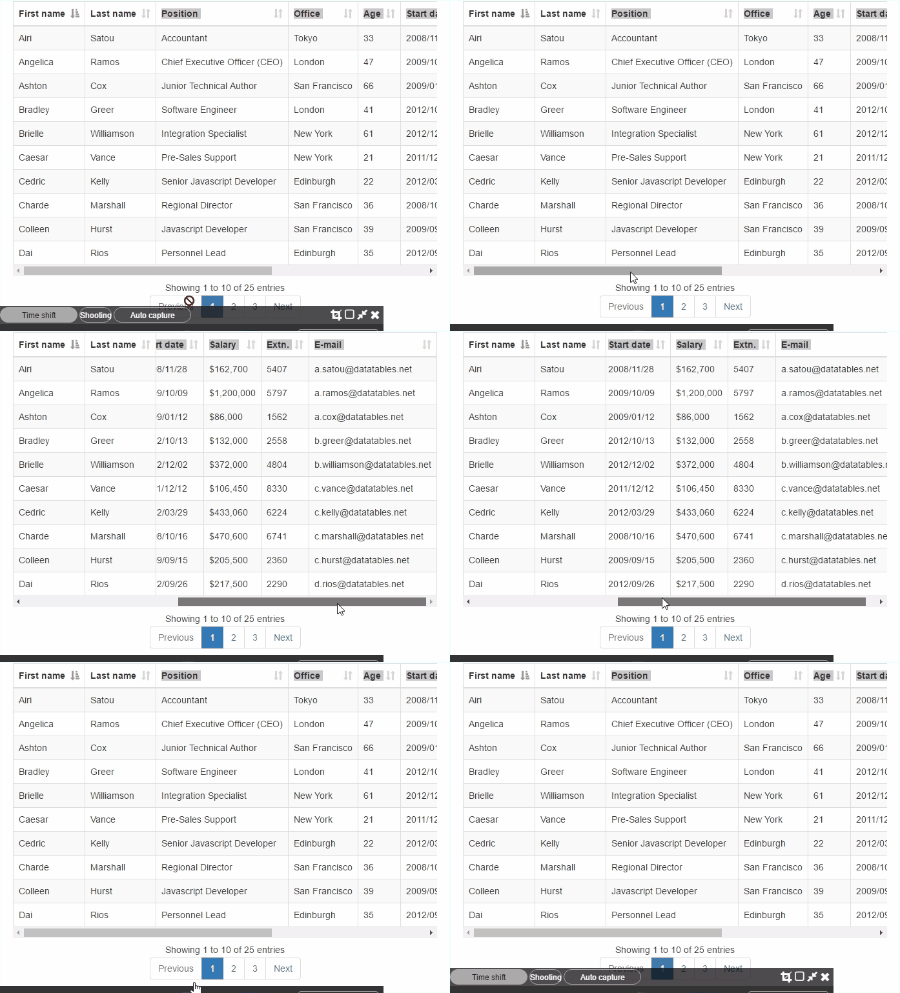
Preview:

See the Pen Bootstrap jquery dataTable fixed columns Width by Yashwant Patel (@yashwant) on CodePen.


Download Source

JQuery DataTable - give fixed width to one or more columns

By yash → Monday, June 27, 2016

What is JQuery DataTable ?

Answer: DataTables is a plug-in for the jQuery which can provide lots of functionalities.
Some of them are as follows:

  • Pagination
  • Instant search
  • Column Sorting
  • Fixed Table columns on lower resolution
  • Fixed Table header
  • Selecting particular row and lot more..
Sometime there is a requirement that we have to use fixed columns for table with search and pagination features. Custom pagination with fixed column for table can be tricky to implement, specially for responsive website. In this case JQuery DataTable can be a very good solution.

In this chapter we will see how to create responsive table with fixed columns. We will be using Twitter Bootstrap to make responsive table.
First Let's add all necessary CSS and JavaScript libraries.

Add following CSS files in head tag of your HTML file
<link rel="stylesheet" href="https://maxcdn.bootstrapcdn.com/bootstrap/3.3.6/css/bootstrap.min.css">
<link rel="stylesheet" href="https://cdn.datatables.net/1.10.12/css/dataTables.bootstrap.min.css">
<link rel="stylesheet" href="https://cdn.datatables.net/fixedcolumns/3.2.2/css/fixedColumns.bootstrap.min.css">

Then add following JS files
<script src="https://code.jquery.com/jquery-2.2.4.min.js" type="text/javascript" ></script>
<script src="https://cdn.datatables.net/1.10.12/js/jquery.dataTables.min.js" type="text/javascript" ></script>
<script src="https://cdn.datatables.net/1.10.12/js/dataTables.bootstrap.min.js" type="text/javascript" ></script>
<script src="https://cdn.datatables.net/fixedcolumns/3.2.2/js/dataTables.fixedColumns.min.js" type="text/javascript" ></script>

Now you can add your HTML Table like below snippet

<div class="container-fluid">
  <div class="col-md-12">
    <table id="example" class="table table-striped table-bordered nowrap" cellspacing="0" width="100%">
        <thead>
            <tr>
                <th>First name</th>
                <th>Last name</th>
                <th>Position</th>
                <th>Office</th>
                <th>Age</th>
                <th>Start date</th>
                <th>Salary</th>
                <th>Extn.</th>
                <th>E-mail</th>
            </tr>
        </thead>
        <tbody>
            <tr>
                <td>Tiger</td>
                <td>Nixon</td>
                <td>System Architect</td>
                <td>Edinburgh</td>
                <td>61</td>
                <td>2011/04/25</td>
                <td>$320,800</td>
                <td>5421</td>
                <td>t.nixon@datatables.net</td>
            </tr>
            <tr>
                <td>Garrett</td>
                <td>Winters</td>
                <td>Accountant</td>
                <td>Tokyo</td>
                <td>63</td>
                <td>2011/07/25</td>
                <td>$170,750</td>
                <td>8422</td>
                <td>g.winters@datatables.net</td>
            </tr>
            <tr>
                <td>Ashton</td>
                <td>Cox</td>
                <td>Junior Technical Author</td>
                <td>San Francisco</td>
                <td>66</td>
                <td>2009/01/12</td>
                <td>$86,000</td>
                <td>1562</td>
                <td>a.cox@datatables.net</td>
            </tr>
            <tr>
                <td>Cedric</td>
                <td>Kelly</td>
                <td>Senior Javascript Developer</td>
                <td>Edinburgh</td>
                <td>22</td>
                <td>2012/03/29</td>
                <td>$433,060</td>
                <td>6224</td>
                <td>c.kelly@datatables.net</td>
            </tr>
            <tr>
                <td>Airi</td>
                <td>Satou</td>
                <td>Accountant</td>
                <td>Tokyo</td>
                <td>33</td>
                <td>2008/11/28</td>
                <td>$162,700</td>
                <td>5407</td>
                <td>a.satou@datatables.net</td>
            </tr>
           
       
        </tbody>
    </table>
  </div>
</div>

Your HTML Table is ready by now and we can initialize this table using dataTable.
We have already added JQuery, so when DOM gets ready, we can initialize out dataTable. Add following Script below all your JS files or create an external JS and add at the bottom of HTML.

$(document).ready(function() {
    var table = $('#example').DataTable( {       
        scrollX:        true,
        scrollCollapse: true,
        paging:         true,
        autoWidth: false,
        fixedColumns: {
            leftColumns: 2                  
        }
    } );
} );

Here we initialized our table with 2 left fixed columns. DataTable can be initialize with lot more options. For all other options please refer to DataTable Options link

Preview
See the Pen Bootstrap jquery dataTable fixed columns by Yashwant Patel (@yashwant) on CodePen.

Download Source

JQuery responsive dataTable with fixed columns

By yash → Wednesday, June 22, 2016
Use indexOf() method of JavaScript string to  check if string contains particular given sub string or not.  String.prototype.indexOf returns the position of the string in the other string. If not found, it will return -1:

var string = "some string",
    substring = "some";
if(string.indexOf(substring) > -1) {
   // String contains given substring
   // do your stuff here
}else {
  // String haven't containg given substing
}

JavaScript - Check if string contains given substring

By yash → Wednesday, May 11, 2016
Problem:

Many of the time we require to get particular portion of the string for further modification. At this time we need to split particular sting.

Solution:

In JavaScript  we can use split() method with regular expression to split  sting and get desired results. Let's take a look at following given string.

first second third fourth fifth     sixth            Seventh 

"\s" is a regular expression which matches spaces, tabs and new line etc. "\s+" regular expression will match multiple occurrence of the white space and tabs.

var input = "first second third fourth fifth     sixth            Seventh ";
var output = input.split(/\s+/);
console.log(output);

Output: 

Output will be a array and it will look something like following image.


JavaScript - Spilit string by single or multiple white space

By yash →

Javascript:


var is_chrome = navigator.userAgent.toLowerCase().indexOf('chrome') > -1;

if(is_chrome){  
//You are browsing on chrome browser"
}else {
//You are browsing on other than chrome browser;
}
Tags:

Detect google chrome using javascript

By yash → Friday, May 6, 2016

Problem statement

Consider a scenario where you have DOM like following..
<div class="container">
    <div class="row">
        <div class="col-md-6">
            A [TEXT]
        </div>
        <div class="col-md-6">
            B [IMAGE]
        </div>
    </div>
</div>
Looks like this on desktop
------------------------
|A [TEXT] | B [IMAGE] |
------------------------
and Looks like this on mobile view
-----------------------
| A [TEXT] |
| B [IMAGE] |
----------------------
But on many occasions you need to display bottom column i.e "B[IMAGE]" at the top of "A[TEXT]" section on mobile devices.

Solution:

If you are using twitter bootstrap, you can make it without writing any extra javascript or CSS. So here comes the solution. Twitter bootstrap provide 2 classes

  1. 1. pull-left (float:left )
  2. 2. pull-right (float:right )

Step 1:
Add first column as image container (B [IMAGE]) and add class pull-right to it. (it will show image on right side of the page on desktop.)

Step 2:
Add second column as text container ( A [TEXT] ) and add class pull-left to it. (it will show texts on left side of the page on desktop.)

Your DOM structure should look like below.

<div class="container">
    <div class="row">
        <div class="col-md-6 pull-right">
              B [IMAGE] 
        </div>
        <div class="col-md-6 pull-left">
              A [TEXT]
        </div>
    </div>
</div>

Preview


See the Pen Twitter bootstrap place right column image on top of text on mobile devices by Yashwant Patel (@yashwant) on CodePen.


Download Source

Twitter bootstrap place right Column on top on mobile view

By yash → Friday, April 29, 2016
HTML5 introduces new input type called "number". We can use this to take number input from user. It's a nice addition to the webpages and make things simpler, but design point of view it is not going to make things simpler.
 Chrome and Mozilla Firefox browsers by default adds up and down arrows. UI can look ugly due to this if arrow is not required.


HTML:
input[type='number']::-webkit-inner-spin-button, 
input[type='number']::-webkit-outer-spin-button { 
    -webkit-appearance: none;    
    appearance: none;
    margin: 0;  
}
input[type='number'], 
input[type='number']:hover,
input[type='number']:focus {
  -moz-appearance: textfield;
}

CSS:
<input type="number" name="number-demo" >

See the Pen Cross platform hide input type number arrows by Yashwant Patel (@yashwant) on CodePen.


Download Source
Tags:

CSS - hide input type number on chrome and mozilla firefox browsers

By yash → Wednesday, April 13, 2016